Starting a dashboard from the workspace
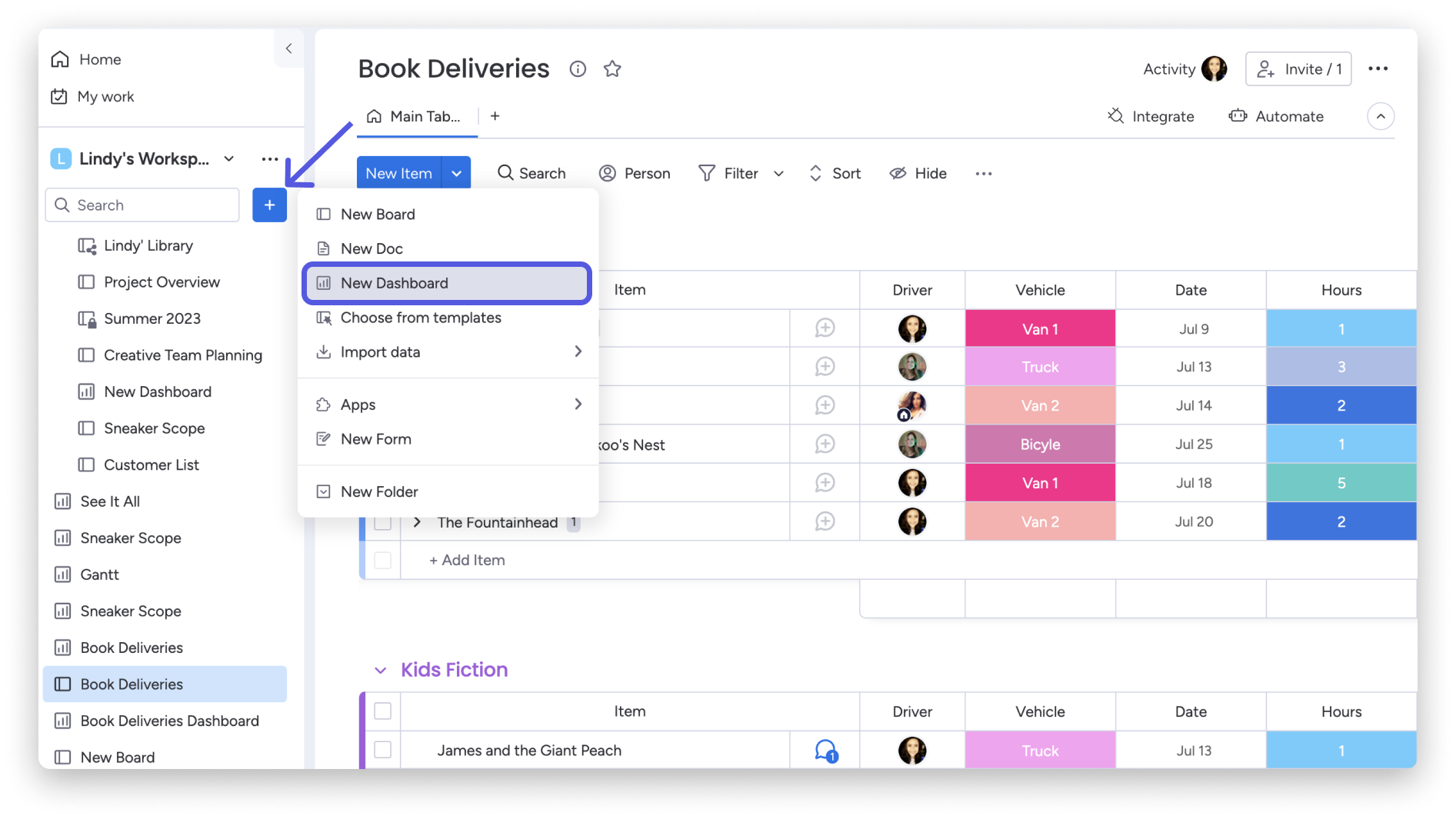
The monday.com workspace menu provides a clear New Dashboard action alongside New Board, New Doc, templates, data import, apps, forms, and folders. In the reviewed Book Deliveries workspace, the dashboard is created from the same environment that contains project boards and existing reports.
This placement makes dashboards a first-class workspace object rather than a hidden analytics feature. Users can create one with the plus button, then connect the board or boards whose columns will supply widget data.
Prepare the board before adding widgets
The source Book Deliveries board contains grouped items and structured columns for Driver, Vehicle, Date, and Hours. Those columns are what make calendar, workload, chart, and person-based widgets possible. The board also exposes Search, Person, Filter, Sort, and Hide controls for day-to-day operations.
Before building a dashboard, teams should decide which fields are required, which status and dropdown values are allowed, and who owns updates. A chart cannot repair missing hours, and a calendar cannot place an item that has no valid date.
Dashboard quality begins on the board: structured columns and consistent updates matter more than decorative widget choices.
Choose widgets around decisions
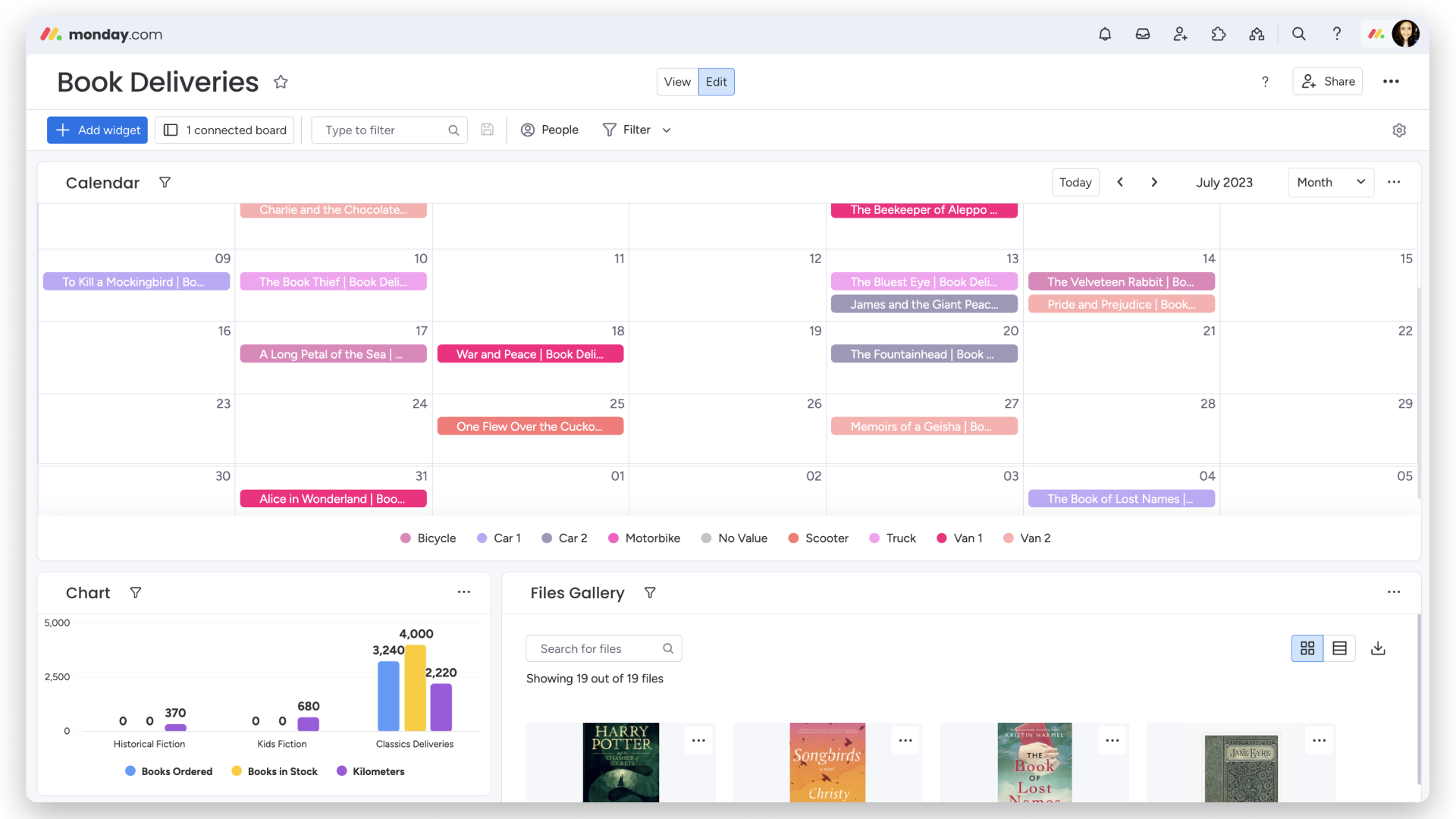
The companion Book Deliveries dashboard demonstrates three useful widgets: a Calendar for scheduled deliveries, a Chart for ordered stock and distance, and a Files Gallery for attached assets. Each widget corresponds to a management question — when is work happening, how are categories performing, and where are the supporting files?
Teams should begin with two or three recurring decisions and add only the widgets required to support them. Overloaded dashboards can recreate the complexity they are intended to remove, particularly when several boards contribute similar metrics.
Automation and integrations around the board
Integrate and Automate actions are visible directly above the board. Integrations can bring information from other systems into monday.com or send updates outward, while automations can assign owners, change statuses, create notifications, or move items when defined conditions occur.
These capabilities improve dashboard freshness only when rules are tested and monitored. Teams should document automated changes, avoid duplicate notifications, and periodically review integrations whose credentials or field mappings may have changed.
Verdict
Creating a monday.com dashboard is approachable because it begins inside the same workspace as boards, docs, forms, and apps. The setup flow encourages users to connect existing work and then add visual widgets rather than starting from an empty analytics model.
The easy creation process should not be confused with automatic reporting quality. The best dashboards are backed by governed boards, named owners, clear definitions, and a limited set of purposeful widgets. Teams willing to establish that discipline can create useful operational reporting without developer support.
Explore the product profile, category, and related research.
This is an affiliate link — we may earn a commission at no extra cost to you.