What is Foxit PDF Editor?
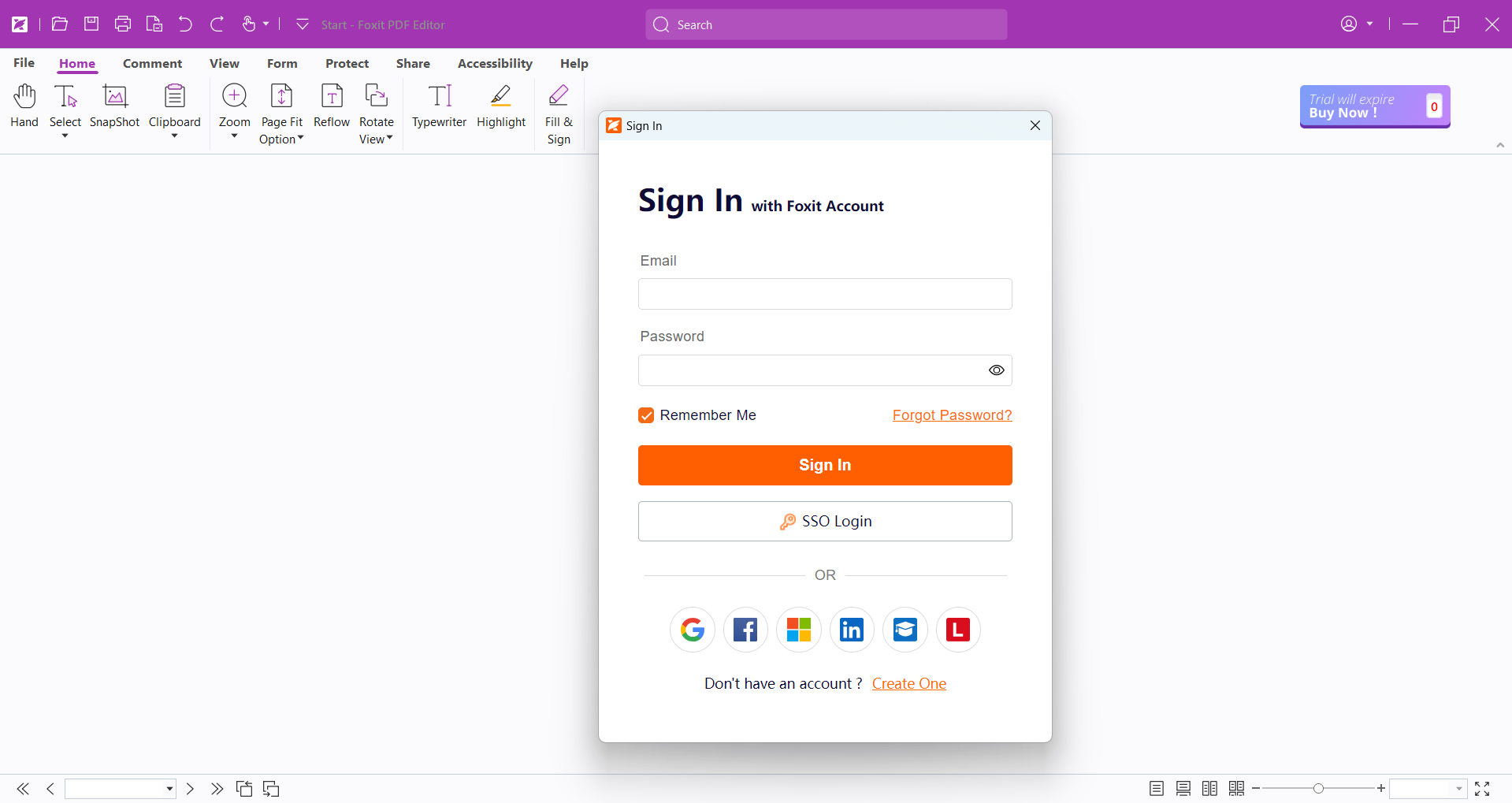
Foxit PDF Editor is a desktop document application for creating, editing, reviewing, protecting, and signing PDFs. The Windows interface shown in our review uses a ribbon layout familiar to Microsoft Office users, with dedicated tabs for Home, Comment, View, Form, Protect, Share, Accessibility, and Help.
Foxit is best understood as more than a PDF reader. The Home ribbon exposes selection and snapshot tools alongside page fitting, reflow, rotation, typing, highlighting, and Fill & Sign. That breadth positions it as an Adobe Acrobat alternative for people whose work depends on changing and approving documents rather than simply opening them.
The desktop editing experience
Common actions sit directly on the Home ribbon, reducing the number of menus required for routine work. Typewriter lets a user add text without rebuilding a form, Highlight supports review workflows, and Fill & Sign keeps signature tasks close to editing. Page Fit, Reflow, and Rotate View help with documents that were not designed for the current screen.
The trade-off is density. Foxit presents many controls at once, and a first-time user may need to learn the difference between editing page content, adding comments, filling form fields, and using the Typewriter tool. Experienced office users should adapt quickly; occasional PDF users may prefer a simpler interface.
Foxit feels like a full desktop productivity application, not a lightweight PDF utility — powerful, familiar, and visibly dense.
Account access, SSO, and identity options
The sign-in dialog supports a Foxit email and password, a dedicated SSO Login option, and several third-party identity providers, including Google, Microsoft, and LinkedIn. This flexibility is useful for organizations that want employees to use managed identities instead of maintaining another standalone password.
Authentication appears as a modal over the editor. That keeps users in context, but it can interrupt document work when a cloud, licensing, or account-only feature triggers sign-in. Administrators should configure SSO before a wider rollout and explain which functions require a Foxit account.
Who should use Foxit PDF Editor?
Foxit is a strong fit for professionals who edit, annotate, sign, protect, or reorganize PDFs every day. Legal, finance, operations, education, and administrative teams are the clearest audiences because they benefit from having form, security, accessibility, and review tools in one application.
People who only read PDFs or add an occasional signature should compare Foxit's free and lower-cost options with simpler browser tools before committing to a paid editor. The value is strongest when several of the advanced capabilities become part of a repeatable workflow.
Verdict
Foxit PDF Editor offers the depth expected from a serious Acrobat competitor while retaining a recognizable desktop interface. Its ribbon makes a large toolset discoverable, and its identity options make it practical for both individual and managed business use.
The principal limitation is not a missing core feature but complexity: the interface and surrounding product plans require more attention than a basic PDF app. For document-heavy users, that complexity buys meaningful capability; for casual users, it may be more software than necessary.
For document-heavy teams, Foxit provides meaningful editing depth without reducing the workflow to a basic browser utility.
Explore the product profile, category, and related research.
This is an affiliate link — we may earn a commission at no extra cost to you.